Archive
Trusted Platform Modules
If you are like me and use windows (among other operating systems), you might have wondered why M$ has required you to obtain new hardware just to run Windows 11. Is this just a cash grab by a greedy vendor or is there method to the madness after all?
The truth is, the industry has learned the costs of poor security, after decades of breaches and a patch routine that seems to never end. Created to help solve the problems associated with 2 factor authentication and now expanded to replace passwords altogether (using Passkeys), WebAuthN is an API specification designed to use public key cryptography to authenticate Entities (users) to relying parties (Web Servers).
Shown below (from the Yubikey site) demonstrating external authenticators (like Smart cards or hardware) or by utilizing Trusted Platform Modules in our devices, people can authenticate with (or without) the standard username and password we have been using for decades.
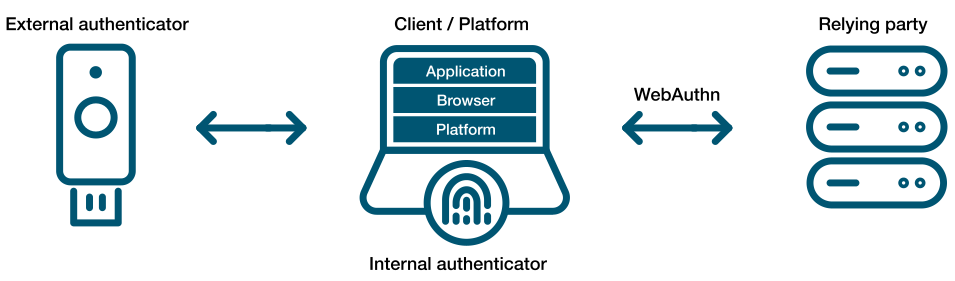
The idea of using a password has been like ‘leaving your front door key under the mat’. Anyone observing your behavior or just walking up and checking ‘under the mat’, can use it for themselves. Password abuse has become a leading cause of fraud to so many users that we started to send 6-8 digit codes via mobile telephone, so that users can authenticate using a second factor (2FA). Not everyone carries a mobile phone and we have learned that receiving these codes is not very secure because they are prone to interception.
We have relied on digital communications for e-commerce sites using cryptography (TLS) with such great success. Contributors like Google, Microsoft and many others decided that it was time to apply these principles to authentication and a specification was born.
The WebAuthN API allows servers to register and authenticate users using public key cryptography instead of a password. It allows web servers to integrate with the strong authenticators (using external ones like Smart cards or YubiKeys) and devices with TPMs (like Windows Hello or Apple’s Touch ID) to hold on to private key material and prevent it from being stolen by hackers.
Instead of a password, a private-public keypair (known as a credential) is created for a website. The private key is stored securely on the user’s device; a public key and randomly generated credential ID is sent to the server for storage. The server can then use that public key to prove the user’s identity. The fact that the server no longer receives your secret (like your password) has far-reaching implications for the security of users and organizations. Databases are no longer as attractive to hackers, because the public keys aren’t useful to them.
A virtual TPM is a software-based implementation of the same hardware-based TPM found in devices today. These vTPMs can be configured to simulate hardware-based TPMs for many operating systems. The Trusted Platform Group has created a standard but it is woefully outdated. Happily, many vendors have implemented the ability to use a vTPM in the last few years that allow us to implement external KMS systems to help protect them.
The cloud providers now support virtual TPMs for use with Secure Computing and Hypervisor support using your existing KMS solutions (KMIP). Even VMWare added its own Native Key Provider.

With support for newer operating systems that can take advantage of a TPM to protect private keys (even from its owner), the idea of Public Key Authentication provides users with the ability to eliminate passwords entirely while binding the authenticators to the people who need to use them rather than the hackers who don’t!
HyperV 2012 R2 preview
Its been over a year now and as soon as Microsoft put out the newest version of HyperV (Windows Hyper-V 2012 R2) I decided to give it a try. There was a new WMI namespace that promised to bring a heap of features to HyperV that would rival the other virtualization platforms and I was eager to get them working in the Lab. Unfortunately it might have been a bit premature but more on that later.
After reinstalling (MS suggests it and I had an error when I tried to upgrade from my HyperV 2012 hosts so I was forced to install a fresh copy),

After I installed the RSAT for Windows 8.1 I encountered some problems connecting to the HyperV options from my Windows 8.1 workstation using the HyperV manager but I was not immediately alarmed. I also noticed that I could not connect to my older system (Windows HyperV 2012) and chalked it up to the new WMI Namespace issue (Windows deprecated the older V1 namespace in the new versions of Windows 8/2012 R2).
After following the lessons learned in the previous post here I was able to create my new Cluster using the following powershell command on one of the HyperV hosts.
‘New-Cluster -Name JSI-1 -Node HyperV1,HyperV2 –NoStorage’
I could then create my new VMs and ISO directories on the Clustered Shared Volume and start recreating my VMs.
‘New-VM -Name SW1 -Path C:\ClusterStorage\Volume1\VMs –Memory 512MB –SwitchName “New Virtual Switch”’
After all my vms directories were created I uploaded my vhd files to add to my VMs. (I decided to convert them to vhdx because they continue to use this new resilient image format introduced in 2012).
‘Convert-VHD –Path C:\ClusterStorage\Volume1\VMs\SW1\SW1.vhd –DestinationPath C:\ClusterStorage\Volume1\VMs\SW1\SW1.vhdx’
I was now ready to add my newly created vhdx files to my existing VMs and finally to spin them up.
‘ADD-VMHardDiskDrive –VMName SW1 -Path C:\ClusterStorage\Volume1\VMs\SW1\SW1.vhdx’
and finally let’s setup the dynamic memory feature like so…
‘Set-VMMemory –VMName SW1 -DynamicMemoryEnabled $True -MaximumBytes 1GB -MinimumBytes 256MB -StartupBytes 512MB’
Now let’s start that bad boy and get it back online…
‘Start-VM –name SW1’
(Here are the all of the commands for HyperV now for 8.1 and 2012 R2)
All is well again – well maybe not…
At the time of this writing there were all types of connection problems with the GUI tools. Windows 7,8,8.1 didn’t connect properly and even the Cluster Administrator with a newly installed Windows 2012 R2 server didn’t fully function. Powershell on the Hyper-V box was the only thing that worked properly – thank god for Powershell.
Maybe the GUI tools will mature after I write this article…
I mean after all it is Windows right 
Backing up with Hyperoo 2 is better than ever
I wanted to start the new year off by checking out my backup solution options. I have a license for Hyperoo and was able to contact support to get that license upgraded for the new version 2.0.
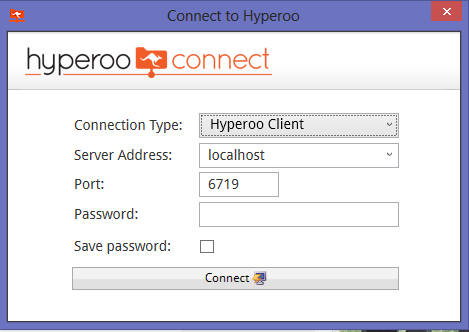
I love the new interface – it allows the user to connect to the client as well as the server component. (The server component is used to take the backup and the client version is used to send the backup). It is the same component that is started on the Hyper-V core OS from the “C:\Program Files (x86)\HyperooSoftware\Hyperoo 2.0\” directory using the command HyperooServerManager.exe (so be sure to also install the Manager component on your Hyper-V hosts).
You can now open the client console on your server without needing to open a remote desktop session to your Hyper-V server. You type the remote name of your server and click on the backup task that is active. When you click on the console tab you can choose ‘Backup Status’ to see a progress bar. (It would be nice to be able to see a projected finish time based on how many files are left). 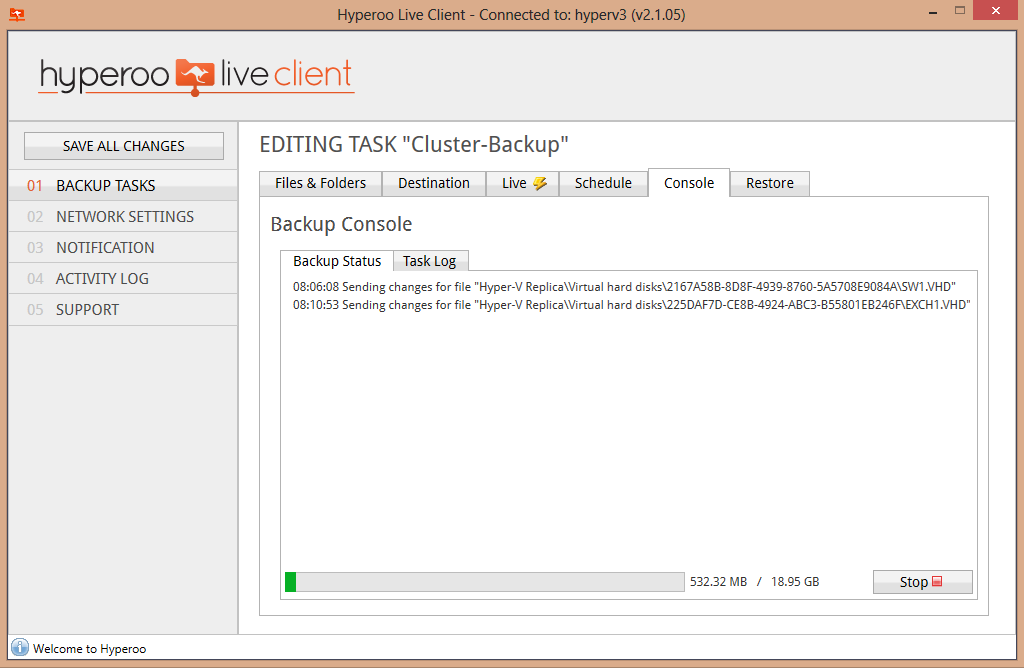 I don’t like the fact that when you click off of the status window and return after viewing other options that it only shows the current item.
Restoring a vm is now easier by connecting to the client and using the restore applet.
I would like to try the Live version to see how much easier it is to restore Clustered files but that will have to wait.
Setting up your 2012 Hyper-V Cluster
I decided to undertake an upgrade of my Windows 2008 R2 Hyper-V cluster this week and assumed that it would be easy (it wasn’t). After getting it up and running there were a few lessons I learned that I wanted to share with my readers.
If you haven’t already read my previous post regarding getting your cluster up and running with the older 2008 R2 version here it is. Reviewing it will help expose some of you neophytes to the process of using clustered storage. There is a new feature available with the new Hyper-V 2012 that is called Replication and I first thought this would work for my application but it doesn’t automatically start the VMs (which can be a good thing but more on that in another post). You still need to get shared storage working so I began by reusing my 32-bit version of Open E-DSS 6 (http://www.open-e.com/products/open-e-data-storage-software-v6/).
It turns out that trying to mount the iSCSI shares proved too difficult for me to simply reuse so I had to format my Clustered Shared Volume (CSV1) so I could use it again with the new Hyper-V servers.
To add the storage to a newly installed version of Hyper-V 2012 I had to type
‘netsh firewall set service type = remoteadmin mode = enable’
on the console to enable remote management from a Windows 2012 server. (The server manager won’t connect to Windows 2012 from Windows 7 – I think you must be using Windows 8). I then typed powershell to begin a shell on the hyperv box. 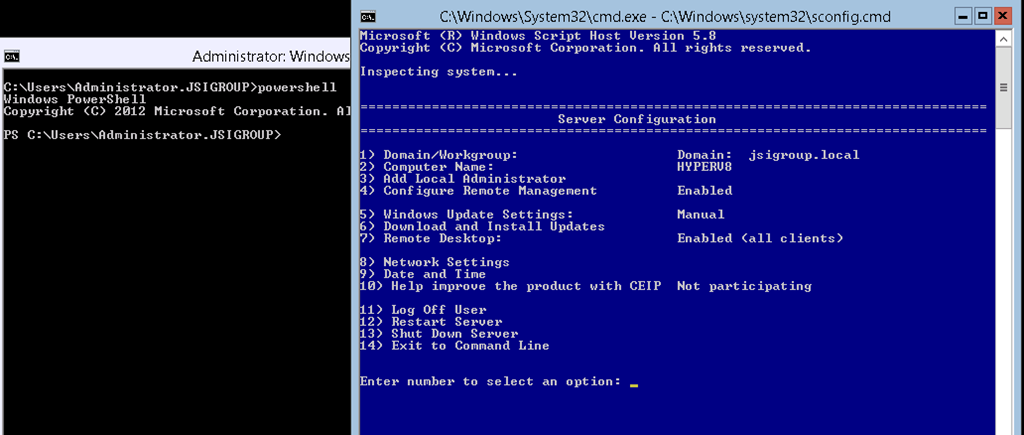
‘Import-Module servermanager’
followed by
‘add-windowsfeature Failover-Clustering, MultiPath-IO’
to install the features. This is even easier than dism on the old server.
Next we run ‘iscsicpl’ to add the iSCSI node for storage. This is my DSS box with a RAID 5 SCSI array that has 5 36G drives in it. 4 drives in a 100G array with one hot spare.
Next I exit out of powershell by typing ‘exit’ and then run ‘diskpart’ to format the drives (on the first machine – I only cover the data drive below but you will need to configure the Quorum drive if you are setting everything up for the first time). This puts you in a terminal style windows so we type commands on a new line and hit enter to run them. To see all of your existing disks you can type ‘list disk’.
‘select disk ?’ (replace ? with whatever the new disk number for the iSCSI disk is)
‘create partition primary’ (this will create a new partition on the drive you selected above)
(if it gives you a read only error you can force it off by typing ‘attr disk clear readonly’ first and then repeat the command to create the partition.
format fs=ntfs label=”CSV1” quick (this will format the partition as a NTFS filesystem so that you can use it as a clustered file system. Type exit to leave the diskpart shell.
If you want to use some powershell cmdlets for configuring the vms or the cluster options you will need to add a few additional roles and features. I have outlined all of mine below.

I have chosen to configure storage and the hyper-V options from my Windows 2012 server with the GUI enabled. This also gives me the option of configuring the Cluster features remotely too because I do not have a working Windows 8 desktop yet.
If you want to use the Cluster Aware Updating that comes with Hyper-V 2012 there are a few things that must also be done (aside from adding those features above).
To enable Cluster aware Updates you must disable Automatic Updates on each HyperV server. You must also install the Cluster Powershell tools Features. Run the following powershell commands to allow the Cluster Manager to restart your HyperV after applying updates
‘Set-NetFirewallRule -Group "@firewallapi.dll,-36751" -Profile Domain -Enabled true’
To verify if your cluster can use Cluster Updates run the Cluster Update awareness tool.
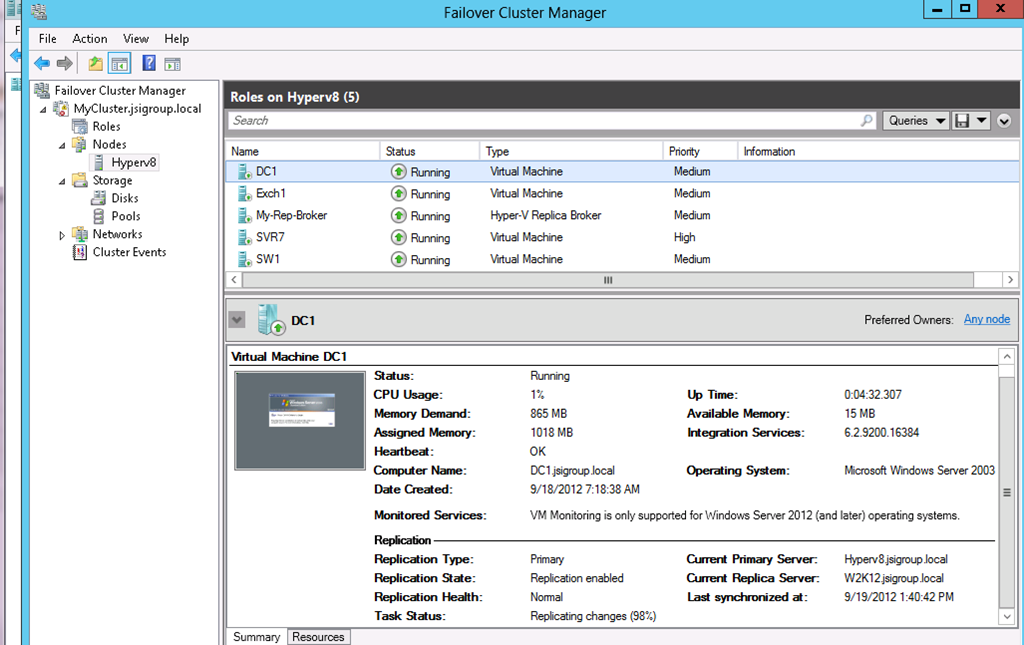
I am very impressed at the functionality of the new hyper-V and I think it will give VMware a good run for the money. With replication for DR and Live migration to and from clusters to standalone machines this VM host platform with allow SMBs to have enterprise features without the costs.
How to extend your NTFS partition with a vmdk file on ESXi
If you are using a large windows file server on your VMware server you will probably end up with a low disk space warning one day. You could choose to resize a partition in-place there but if something goes wrong you are kinda hosed unless you have a backup. You could copy it but not everyone has that kind of disk space so I like to add an ISCSI datastore to my ESXi server and choose to copy the VM to another datastore first. Then I can try to extend the copied vmdk file using a helper vm. It required a combination of stopping the vm, copying the file, renaming the original vm and bringing the new extended vmdk file online to extend it. Once I verify that everything was working our plan was to then remove the old VM once we were completely sure it was working and to free up the space for other projects.
In ESXi vsphere Shutdown vm
Login to ESXi server using putty
cp /vmfs/volumes/datastore1/WindowsXP /vmfs/volumes/datastore2
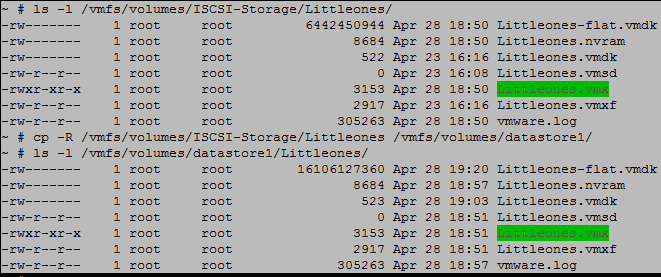
Here we see the copied file is exactly the same at the original
In ESXi vsphere
Rename Old VM to .old (this changes the VM name not the directory name)
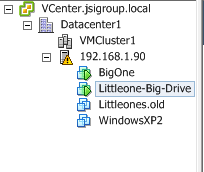
Open helper vm and edit settings, close
Open settings again and increase the hard drive to desired size
Attach copied vmdk file from new datastore directory to existing VM as another drive
In helper OS
Open command prompt and type diskpart
List volume
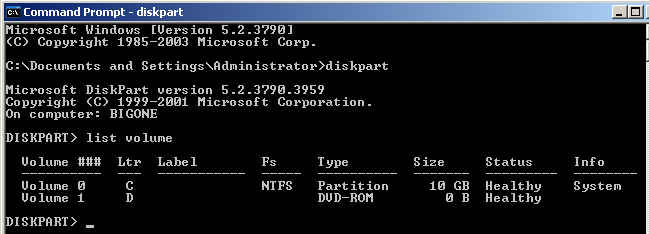
Select volume (new volume number)
extend
quit
In ESXi vsphere
Create new VM (custom) with old name and do not attach hard drive
Add hard drive and use existing vmdk from new datastore directory
When you boot the machine it might do a check disk to resize the partition or after it boots it might need to restart with the new device added.
Verify IP address assignments make changes after initial boot if you do not assign IP automatically using static DHCP addressing.
Reboot and verify operation and once you are satisfied to can delete the old VM.
Backing up your Hyper-V cluster isn’t expensive
It’s becoming very easy to backup virtual machines these days, there are even free versions becoming available (http://www.trilead.com/ – for VMware and http://www.altaro.com/ for Hyper-V – there is also script for XenServer available from Jeff Riechers) but one of the problems with using a high availability cluster is affordable backup. Most companies take the approach that only large companies are using cluster file systems and so they can afford the cost of an enterprise solution.
Well I am here to tell you about a software that is coming from the UK called Hyperoo (www.hyperoo.net) that is as little as 79 bucks! The software is a rsync client/server model and it works with VSS snapshots so there is no downtime. First you setup a server that will receive and house your backups. These are basically the VHD disk files and a Virtual Machine subdirectory that contains the configuration. (Most people agree that it is easier to restore a VM by recreating the configuration and using the VHD file so this is all that is really needed.)
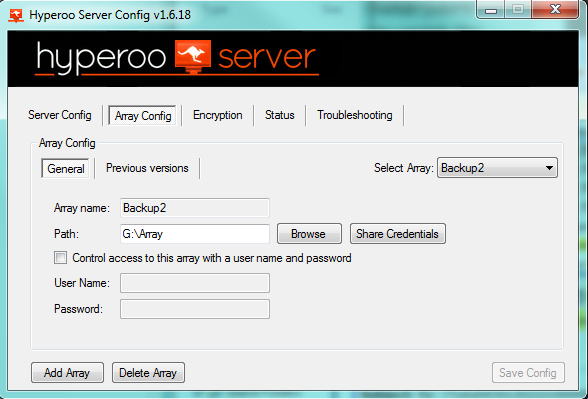
We used a local USB drive on our workstation to save the backups. This make it easier to deploy to other VM servers like XenServer.
We also find that it’s easier to install VMs on our Hyper-V servers by making an ISO directory on the shared filesystem for installations.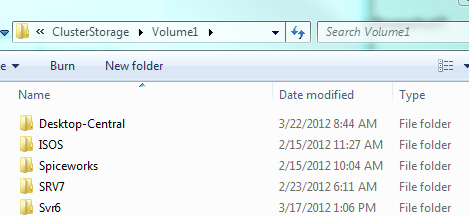
You can see that we have several VM directories on our shared filesystem that we will backup along with our ISO directory. Since this system only deals with a delta backup (files that change) it will not take up very much space on the backup drive.
Now we will install and setup the client portion on one of our Hyper-V servers. (Fortunately we will only need one license and one server to contain the backup software because the shared file system contains all of the VMs whether they are running on this particular Hyper-V server or not) We will need to add a few Server-Core components in order to install our software. From a command prompt on the Hyper-V server type the following;
dism /online /enable-feature /featurename:NetFx2-ServerCore
dism /online /enable-feature /featurename:NetFx2-ServerCore-WOW64
dism /online /enable-feature /featurename:NetFx3-ServerCore
dism /online /enable-feature /featurename:NetFx3-ServerCore-WOW64
(I can’t remember which one I used and I do remember something about the WOW64 is for 32bit machine but maybe someone else can elaborate?)
Once you have updated your server you can run the Hyperoo client from the command prompt. (BTW there is a great project running around that gives you an applet to add remove applications, run updates, etc. called CoreConfig from codeplex at http://coreconfig.codeplex.com/). When you have finished the install you can open the app by typing ‘hyperooconfig’ from the Program files (x86)\Hyperoo directory. You should get an app that looks like this (without the configurations).
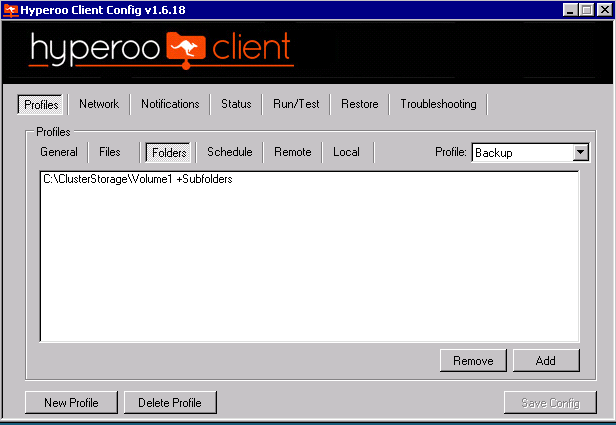
We have configured our storage root and all sub directories and setup a schedule to run at midnight every night. We have also setup email notification so our backup status report is emailed to us (see below).
Backup Profile: Backups
Machine name: HYPERV2
Remote Backup completed successfully.
Number of files transferred: 7
Number of files skipped: 20
Matched data: 26.70 GB
Skipped data: 6.22 GB
Changed data: 1.33 GB
Total sent: 1.33 GB
Total received: 23.11 MB
Remote backup start time: 7:07:06 AM
Remote backup end time: 7:43:24 AM
Backup duration : 00:36:17
As you can see on our Gigabyte network using a USB 2.0 backup drive we manage to syncronize our backup copies of almost 27Gig of data in just over 35 minutes! This custom rsync algorithm is very quick. We could even run this job every hour resulting in very little lost data if disaster ever occurs.
For the cost of a few Core 2 Duo or Core 2 Quad computers and 79 bucks you can have the benefits of High availability between two live VM servers and back them up in the event of disaster recovery. All this for under 1000.00 makes Hyper-V a great solution for any business that needs 5 9s (99.999%) of uptime.
Deploy Hyper-V Cluster image using PlateSpin Migrate 9.1
The new platespin migrate has come out last August and we thought it was time to test drive it on the Hyper-V SP2 cluster we have created. Unfortunately you cannot directly connect to a cluster or a Hyper-v host so you have to setup your new environment in what PlateSpin calls a semi-automatic mode. This requires that you boot an ISO image on the target virtual machine making sure to set it up with as little or more resources as your source (hard drive, space, RAM, etc.)
One of the nice things we notice right away is the use of a debugger for determining why the boot loading/registering process won’t work. It also has the ability to inject drivers after a failed migration which is very handy too! 
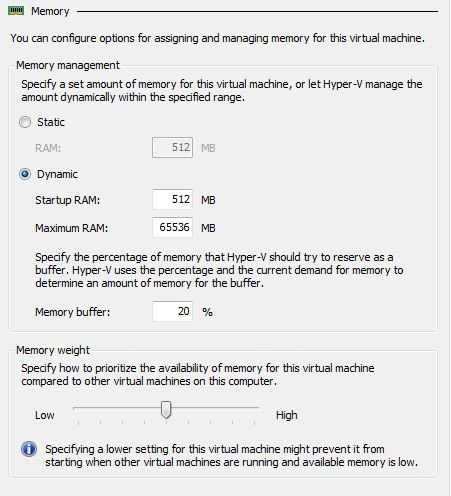
(As an aside – we noticed that our XP test failed to boot stating that there was not enough memory when in fact we were using 512MB and platespin only requires 384MB. They do have a smaller memory boot ISO available if you need it but in our test platform this issue was resolved by using the new dynamic memory feature of Hyper-V SP2.)
After the controller is downloaded and started we wait a few minutes for the discovery process to finish and we have a new target that shows up in our Platespin migrate client.
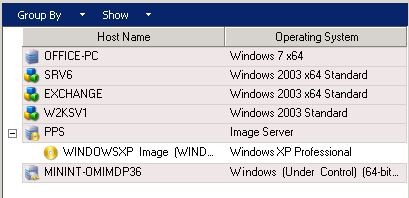
You can see the new target appearing on the bottom of our display above. The boot ISO images register with the PlateSpin Migrate server using a randomly generated host name.
We can then deploy our Windows XP image using an image that we have captured to our new Hyper-V target.
Want to recover some space on your ESXi server–read on
I wanted to tell my readers about a great tool I found from those creative people at Quest Software called vOptimizer. This tool is an essential part of any virtual administrators toolbox.
You start by connecting to your ESXi server and create a Project. This project will use a boot ISO uploaded by the windows client wizard during initialization and it will allow you to run a disk optimization that can do things like removing old temp files all the way to resizing your VM disk!
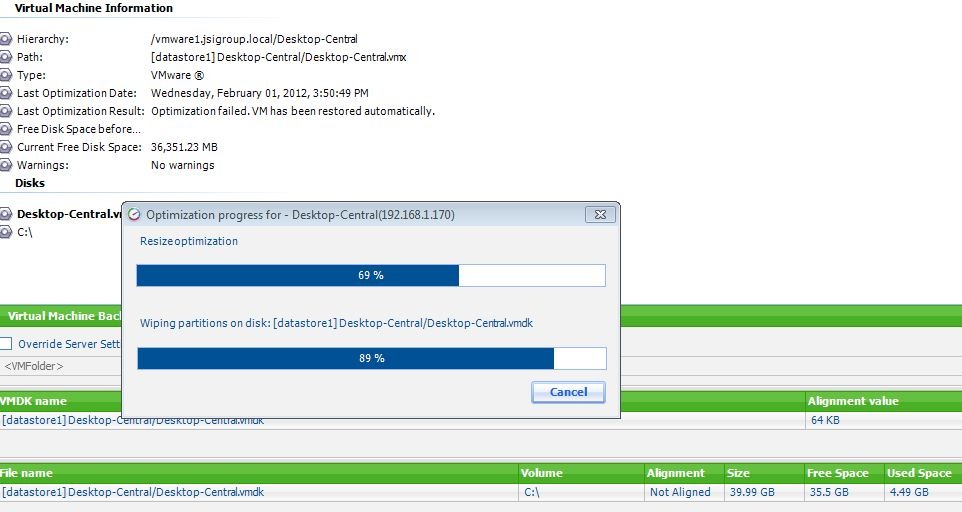
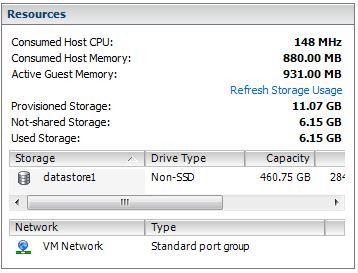
We started by connecting to a Windows 2003 VM on our ESXi 5 server that was grossly oversized at 40G. This project was setup to remove every excess file (including removing the swap file) and once we had successfully ran the disk optimizer we were left with a running server that was only about 11G in size. The entire process only took about 40 minutes of downtime.

We checked the ESXi summary before it was completed (left) and after (right).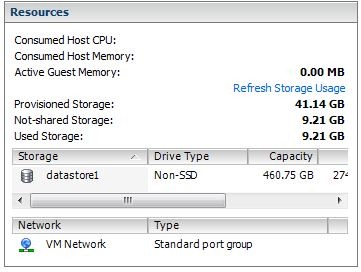
Now I used to run a gparted iso and change the size of the disk and then expand the NTFS partition to make a disk larger but this trick allows you to make it bigger or smaller.
Unfortunately is does not work for LVM disks and with most of the Linux distros moving towards this default installation we are still looking to resolve this issue (gparted still doesn’t support it either).
(BTW this tool cannot optimize a VM if there is a snapshot so you will need to back it up first and then remove the snapshot before you can run the optimizer. This is true for windows vms as well).
After 30 days this tool will run as a free tool and only optimize 2 VMs but it is still a handy tool to have in your toolbox.
 Security Analyst - Jeff Soehner CISSP, GXPN,GPYC,GMOB,GCIH