Archive
A look at Windows Hyper-V as a Cluster
I decided it was time to look at the free windows version of Virtual Machine software that comes with Windows Server 2008 R2 called Hyper-V. The platform has a little larger of a footprint compared to to others but the administration tools should make it easier to manage from our new Windows 7 platform. This proved to be challenging but now that it is setup I am quite happy with the results.
Through the Hyper-V Configuration panel (blue window), I did the following:
- Changed the default Host Name (I changed my hostname several times*)
- Restarted server to apply the computer name settings
- Changed the IP to static addresses
- Enabled RDP support
- Allow MMC Remote management
- Enable Windows Powershell
- Restarted server to apply changes
- Configured Remote Management to allow WinRM and relax Firewall settings
- Enabled an extra firewall setting (through the command Netsh advfirewall firewall set rule group=“Remote Volume management” new enable=yes) on my administrative machine for managing the disks through a remote MMC snap-in
- Joined the domain (Windows 2008 R2 Domain created on a separate server on the network)
- Rebooted without changing the machine name again.
- Added the domain Administrator to the local Administrators group (option 4 of the Hyper-V Configuration tool).
Next we are going to use iscsicpl (the control panel added to R2) in order to add our iSCSI target volumes to our first hyper-v cluster server. When we type this command into the hyper-v machine we are asked if we want the Microsoft iSCSI service to start automatically so please say yes.
(Now we used a free version of DSS to configure our third PC as a storage server running iSCSI RAID 5. There are a number of software/hardware options and a multitude of configuration methods but we chose this because it supported multipathing – it should also be noted that we previously connected and formatted both of these disks as NTFS)
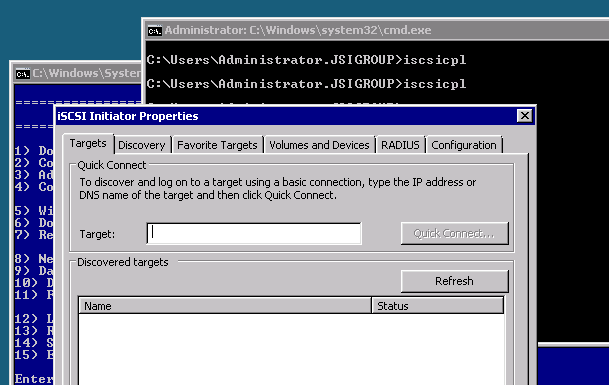
Enter the IP address of our target and click ‘QuickConnect’ Once you are in the quick connect window click on each of the disks and click connect. They should read Connected before we proceed. Press ‘Done’ and then press Ok to close the applet.
You should now be able to connect to the Disk Management of that server from your management system and configure the drive letters. I changed my quorum drive (the Witness disk) to use letter Q and the main storage cluster volume to use S.
I then ran the command "start /w ocsetup MultipathIo" to setup multipathing and rebooted.
I then repeated the process (all except step 9) on the second virtual server and so on (if you had more than 2 machines considered for your cluster).
After I finished the setup on the second server I connected back to the first server with Server Manager and verified that Multipath was installed while I waited for the second machine to restart.
![clip_image001[4]](https://mobilesecurityanalyst.com/wp-content/uploads/2012/01/clip_image0014.png "clip_image001[4]")
Once I verified that the second machine had reconnected to the same drive letters and that it too had Multipathing enabled we could turn on the Failover Clustering Feature (option 11). You should also see that feature listed in the server manager when you connect to both.
Next step was to connect to each of the servers and enable an External (Virtual) Network for the VMs to use. I just used the default settings and enabled the same NIC that the management interface was using.
Next step was to run the Failover Cluster Manager and Validate our two servers for a cluster. (* We found that this method would not allow us to connect and I suspected that it was a name resolution issue that is caused when the machine name is changed without joining a domain. I went back to the first step above and removed the computer from the domain and rebooted. Then I joined the domain AND changed the name of the computer before I restarted to fix it).
After validating that the two servers could be used in a cluster (*) we created the cluster.
(* When using only one set of network cards I found that there was a warning stating that the network was a single point of failure but I choose to disregard that)
Once we have the cluster created we can turn on the Cluster Storage Volumes and add the CSV that we created earlier.
Now Click on Services and Applications in the Failover Cluster Manager and look on the right side for an option to create a Virtual Machine and make sure to use the ‘Store the Virtual Machine in a different location’ check box and enter ‘C:\ClusterStorage\Volume1’ as your path to store the Virtual Machine. The configuration will automatically use the Witness Disk and the vhd will reside on the Clustered Volume.
Building a Network File System for use with Virtual Machines
One of the most important parts to a computer and one that is the hardest to maintain is the file system or disk. Most systems use a local file system and that is fine for the majority of applications but inevitable the disk fails and you lose your data or OS.
RAID (redundant Array of Inexpensive Disks) has helped prolong the local file system and some people have great success with various hardware and software versions of this approach but now that we have LAN speeds of 10G the advent of using a remote file system that is shared amongst our servers and workstations seems our best solution.
I wanted to use the new iSCSI approach to communicating with a remote array but it seems more and more efficient and popular to use an almost 30 year old approach called NFS.
There are a few file system operating systems available for free to use that allow the user to setup a computer with hard drives and some type of RAID configuration so I took an old P4 X86 computer I had to use for my new (old) file server.
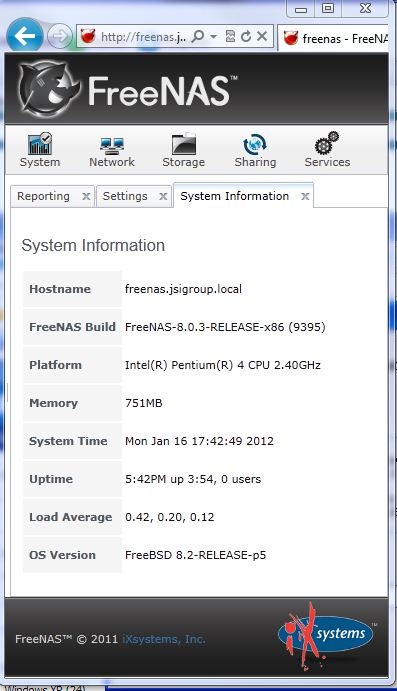 I had run Windows 2003 on this but I found that the OS overhead coupled with the poor NFS/iSCSI support forced my to run it with Linux/BSD variant instead. I know that Open Filer would run on a small partition on the hardware RAID controller I had but the Adaptec 2100 was not supported in the 32 bit version of OpenFiler 2.3. (I have used it for clients with an HP rack mount server without problems and it runs surprisingly stable too). I choose to grab the new version of FreeNAS that uses the FreeBSD kernel and it would prove a surprise to be able to run with all my old hardware. The only caveat is that I could not run it on a USB/Compact Flash drive and had to settle for an old IDE hard drive to run the OS.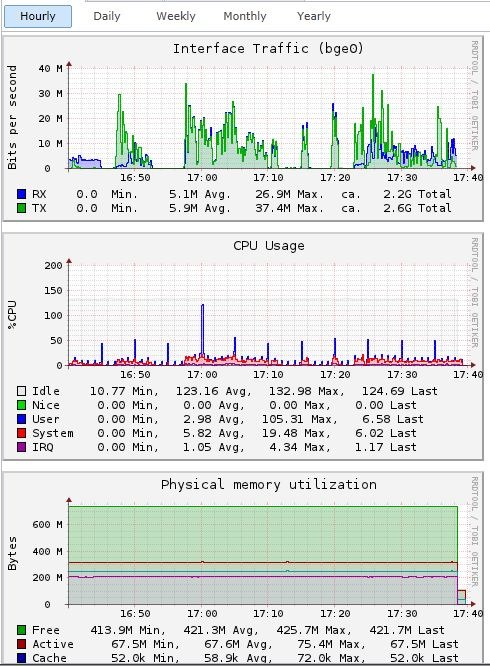
It comes as no surprise that I can setup a RAID5 drive of approx. 100G using some old 36G SCSI drives and put in a Broadcom NIC to be able to run VMs using this remote NFS server.
With an old 2.4G Generic motherboard and less that 1G of RAM anyone can have safe online storage that can enable your VM servers to run more efficiently with less resources.
A look at the new Xenserver 6
After we rebuilt a new workstation for the office we were able to start experimenting with some new disaster recovery ideas. These tests would involve some of the new VM server configurations and Xenserver 6 has made it to the top of my list.
Once of the issues with VMservers that everyone has is updates. It’s quite a benefit running more than one server on a single piece of hardware but it’s quite another when you have to patch the VMserver and take them all offline too!
One of the nice features of the new Xenserver 6 is that upgrades to the pool of VMservers can be done using the XenCenter console with the push of a button. Everything from uploading the patches to rebooting the VMservers is done for you.
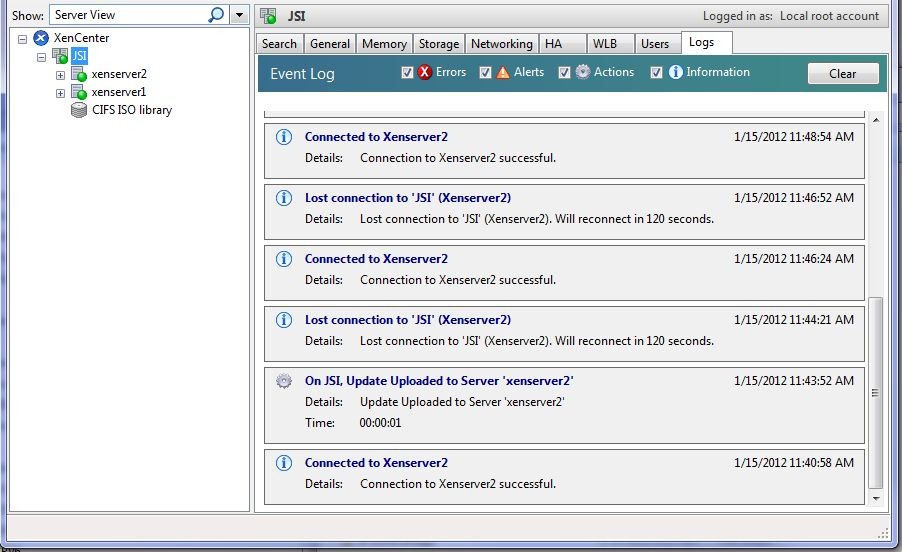
We tested our first patch on two fresh installs of XenServer 6 and the process took about 8 minutes from the start to the finish.
We then imported a VM into the master and updated the pool again with two patches in succession to see the time it would take to migrate the VM back and forth to maintain the uptime. Unfortunately this product does not allow migrations when using local storage. Even when we took into consideration the time to suspend the VM and spin it up again the patches only took 15 minutes.
Lastly we moved the storage to an NFS host (FreeNAS) and created shared storage. We added another patch and started the process while we left the lab. The updates took less than 10 to reboot the same machines AND migrate the working XP machine from one server to the other. Best of all is the uptime – there was no appreciable lost of available IP as shown in this simple ping test. 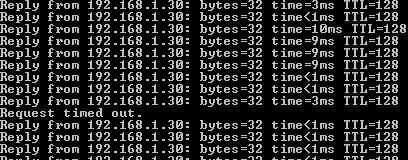
(Notice the point when we began the migration from one server to another in the pool is shown by the increase in time to approx. 10ms)
I really like the ability to run VMs with maximum uptime and that is good news for small business owners and support personnel like myself. That means we don’t have to patch at 4 in the morning anymore! 
Oracles VM Server – a look inside Part 2
One thing is sure – this is not a simple Virtual server setup – this software is complicated and best of all it’s free! You can have several machines running clustered storage and VMs that can all be controlled by a web driven interface.
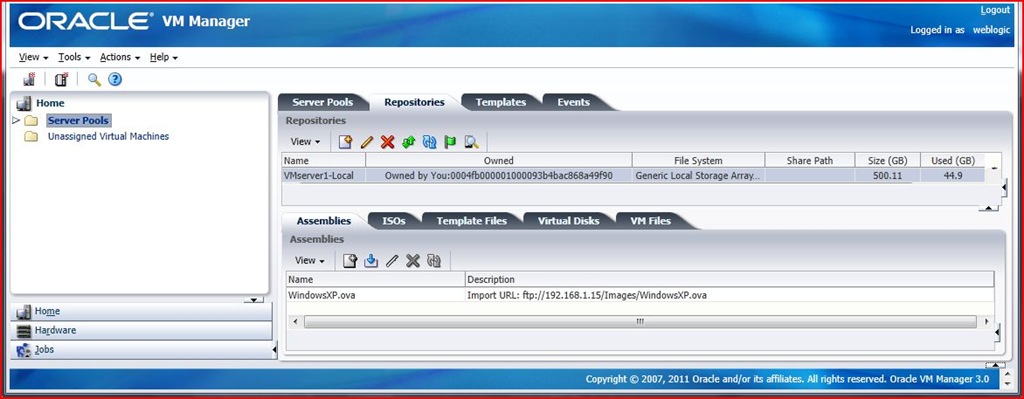
We begin by diving into the VM manager interface using Internet Explorer as our web browser. (Some of the demos show Firefox but one thing is sure – you need java installed to use the VNC console for these VMs).
I have seen several of the older VM 2.x install and config documented so I won’t go into detail here but while I was testing this platform I did noticed a few pros and cons that I have noted below.
When configuring the VNC connection to your VMs the session does not stay open. You have to ‘Launch Console’ again and again when setting up your VM after it reboots.
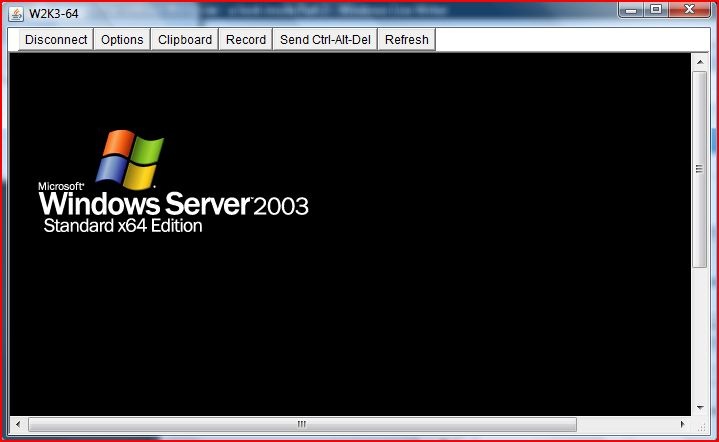
Import/Export is not supported as well as the other platforms. I suspect that there are problems with ‘Stop 07B’ errors when using SATA imaging and then importing them to the VM server.
I think the clear bonus is the free cluster features when using more than one VM server. You can use several network cards to create private networking for management and for clustered storage and fail-over migration to reduce latency.
One caveat is that the machines must share a repository (you can’t use local storage on each of the VM servers and they must be the same versions – 2 AMD or 2 Intels is not enough). I tried to migrate a running vm between two lab machines – HP DX5750 and a Dell Optiplex 740 and received the following ‘reasons’ for the failure from the Oracle VM Manager web interface.
1.VM: WinXPSP3, has its config file is in repository: VMserver1-Local, which is not presented on server: VMserver2
2.VM: WinXPSP3, has vDisk or ISO: WinXPSP3, whose repository: VMserver1-Local, is not presented on server: VMserver2
3.VM: WinXPSP3, has vDisk or ISO: WXP-SP3.iso, whose repository: VMserver1-Local, is not presented on server: VMserver2
4.Server: VMserver2, and server: VMserver1, have CPUs in different compatibility groups: Default_AMD_Family:15_Model:67, Default_AMD_Family:15_Model:75
Oracles VM Server – a look inside Part 1
I wanted to setup a production environment in my lab to test out Oracles VM Server framework so I set aside a few hours to take ‘a look inside’. After downloading the small ISO to setup a server (it only runs on 64-bit hardware) I set out to download and setup the manager component. Unfortunately it wasn’t as easy as running a windows client like the Citrix and VMware product but I was intrigued and decided to persevere.
After downloading the Oracle Linux image (wow it’s almost a full DVD) I installed it on a system. It looks a lot like a RedHat system with anaconda being customized for their installer. I then found that I needed to tweak one of the installed files to increase the files that could be opened in order to run the installer. (Add the following lines to /etc/security/limits.conf file: * soft nproc 4096 * hard nproc 16384 * soft nofile 16384 * hard nofile 65536)
After rebooting and creating a new user (oracle) with a group (dba) I mounted the install CD and ran the runInstaller.sh script. 
After entering three passwords for the database, weblogic and VM manager applications the install ran for about 20 minutes (your time may vary). We are then presented with a line that tells us to wait while ‘ WebLogic configures the applications…”
After about 5 more minutes we were done. You get a brief summary of the installation once you are done.
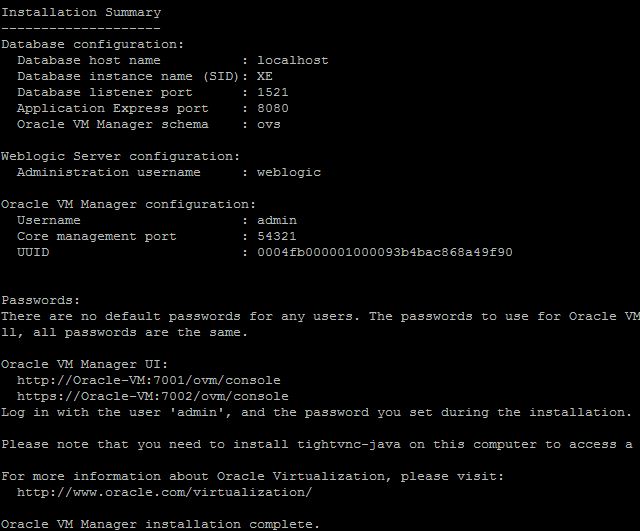
(You can get an RPM for tightvnc-java from here – http://oss.oracle.com/oraclevm/manager/RPMS/)
I rebooted the workstation and waited several minutes for all the services to start…
and then we were ready to begin the configuration…
 Security Analyst - Jeff Soehner CISSP, GXPN,GPYC,GMOB,GCIH